> For the complete documentation index, see [llms.txt](https://docs.pancakeswap.finance/llms.txt). Markdown versions of documentation pages are available by appending `.md` to page URLs; this page is available as [Markdown](https://docs.pancakeswap.finance/trading-tools/social-login/social-login-how-to-guide.md).
# Social login: How-To Guide
Get started with DeFi in seconds — no wallet extensions or seed phrases needed. Follow the steps below to create your social login wallet, set a recovery password, and recover your wallet on a new device.
### 1. Creating Your Social Login Wallet
1. Go to pancakeswap.finance
2. Click **Connect Wallet** → Select **Connect with Social Login**
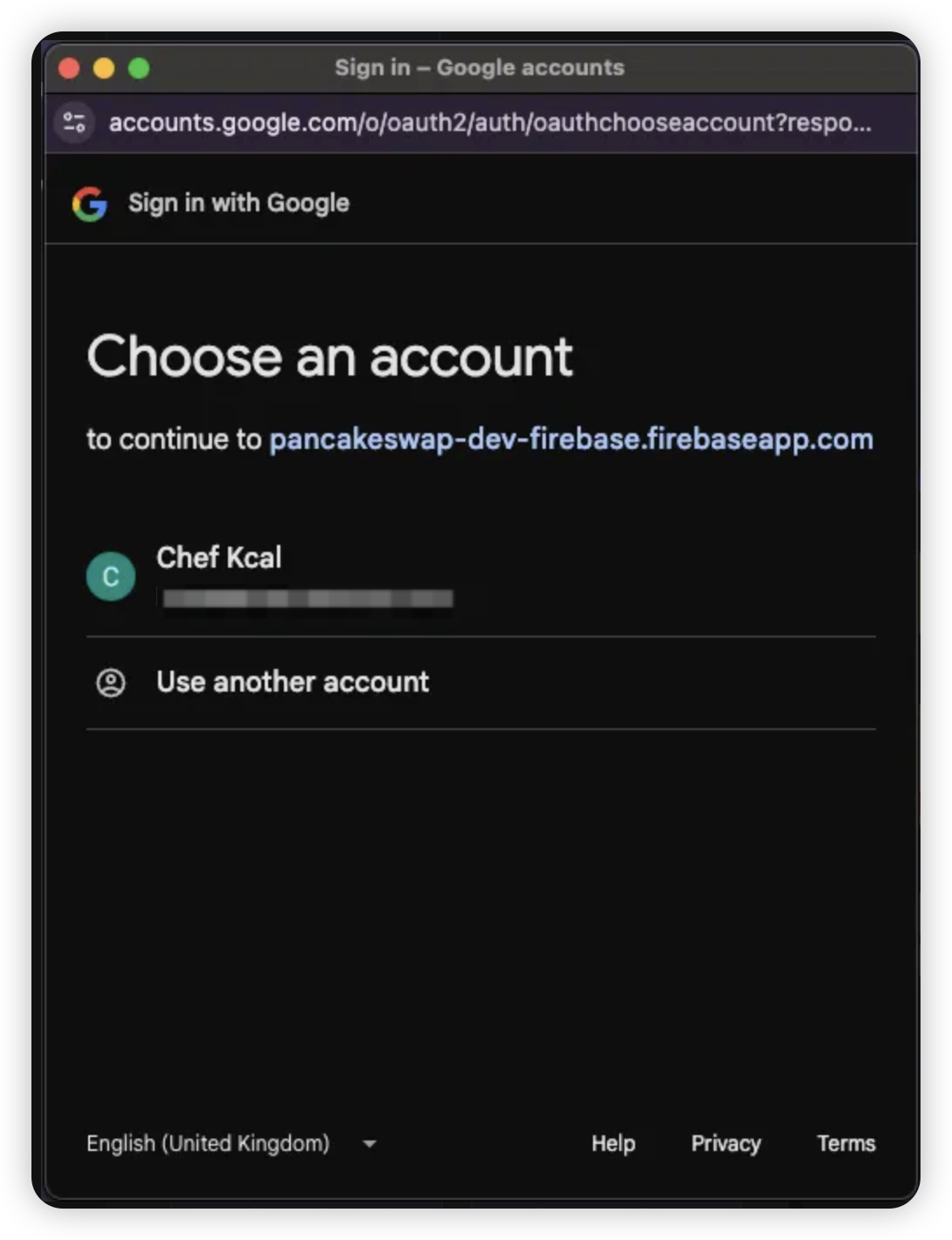
3. Choose your preferred social login method:
* **Google**
* **X (Twitter)**
* **Telegram**
* **Discord**
> 💡 Each social account creates one unique wallet for use on PancakeSwap.
4. Log in with your selected social account credentials
5. Once login is successful, your wallet will be created and ready to use
***
### 2. Setting a Recovery Password
After your first login, you'll be prompted to set a **recovery password**. This step is optional but highly recommended for full wallet control.
1. Click **Set Recovery Password** when prompted
> 🔒 If left unset, the recovery share will be stored by Privy by default
>
> 🔑 [Learn more about recovery shares](https://docs.privy.io/security/wallet-infrastructure/advanced/user-device#securing-the-recovery-share)
{% hint style="success" %}
If you dismiss this prompt, it will reappear again after 1 week, as part of PancakeSwap’s commitment to wallet security.
{% endhint %}
2. Choose a **memorable password** — you'll need it for logging in on a new device or when your session expires
> ⚠️ If forgotten, wallet access may be permanently lost
3. Save your password securely by **copying or downloading** it
4. Re-enter your password to confirm
> ❗ An error will appear if your passwords don’t match
5. Review the **disclaimer** and confirm you understand the recovery password risk
6. 🎉 Success! Your recovery password is now set
> Reminder: You’ll be asked to enter it again when your session ends or you switch devices
>
***
### 3. Recovering Your Wallet (New Device Login)
If you access PancakeSwap on a new device, follow these steps to recover your wallet:
1. Log in with your **social account** on the new device
2. When you attempt your first transaction or on-chain action, you’ll be prompted to **enter your recovery password**
3. Once confirmed, you can continue transacting as usual — no further setup required!
---
# Agent Instructions
This documentation is published with GitBook. GitBook is the documentation platform designed so that both humans and AI agents can read, navigate, and reason over technical content effectively. Learn more at gitbook.com.
## Querying This Documentation
If you need additional information that is not directly available in this page, you can query the documentation by asking a question.
Perform an HTTP GET request on the following URL with the `ask` and `goal` query parameters:
```
GET https://docs.pancakeswap.finance/trading-tools/social-login/social-login-how-to-guide.md?ask=&goal=
```
`ask` is the immediate question: it should be specific, self-contained, and written in natural language.
`goal` is what the user is ultimately trying to achieve, the reason they need the answer. Sharing it helps GitBook give you a better, more relevant answer. A goal is most helpful when it describes the outcome the user wants rather than restating the question. For example, with `ask=how do I create an API token`, a goal like `automate deployments from our CI pipeline` lets GitBook tailor the answer to that use case.
The response will contain a direct answer to the question and relevant excerpts and sources from the documentation.
Use this mechanism when the answer is not explicitly present in the current page, you need clarification or additional context, or you want to retrieve related documentation sections.